Add Contact Roles in Salesforce1

If you’ve got a Sales team that works extensively with their mobile phones, then you’ve probably run into the limitation of being unable to add Contacts to your Account or Opportunity Contact Roles.  This is something that common sense would think was available, until you get that dreaded email from an annoyed Sales Rep asking why they can’t add another Contact Role from their phone.  And then you spend 10 minutes making sure you’re not going crazy, because you just assumed they could.  With this post we’re going to go over a quick and easy workaround for this.  We will be specifically solving this for the Opportunity Contact Roles scenario.

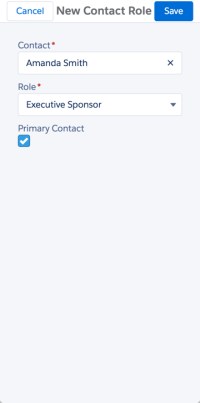
SF1 view

Automation Overview:

  1. Inputs for Contact Role received (Action)
  2. Process Builder triggered (Pass inputs into Visual Flow)
  3. Contact Role created in Flow
  4. Add Action to Opportunity Layout

For this solution we have two different options in how we can do it architecturally:

  1. Record Create – Create new Custom Object
  2. Record Update – Use Custom Fields on Account/Opportunity

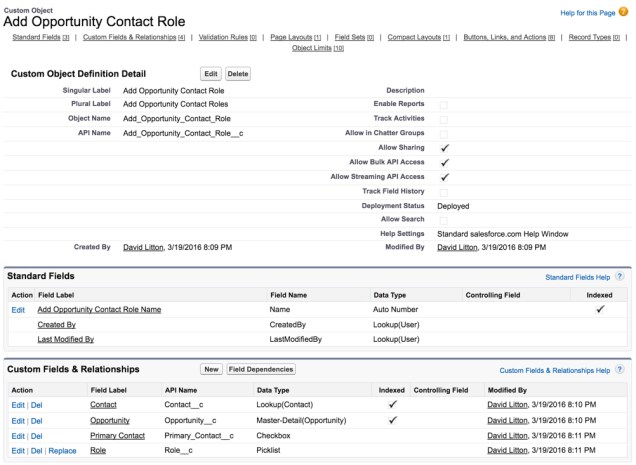
For me, because some of these fields are similar to other fields you might find on an Opportunity, I am going to go with a new Custom Object.  What fields do we need create in this Custom Object?

  1. Auto Number
  2. Opportunity (Master-Detail)
  3. Contact (Lookup)
  4. Role (Picklist, match Contact Roles)
  5. Primary Contact (Checkbox/Boolean)

Custom Object.jpg

Now that we have our Object ready, we can go create our Action.
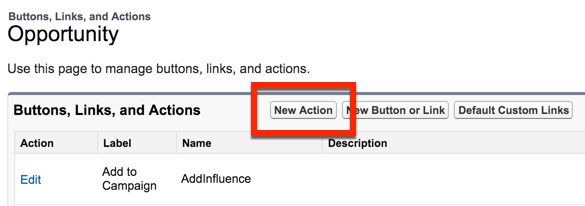
Action1.jpg

Keep it on the default, Create a Record, and select Add Opportunity Contact Role (our Custom Object we created).
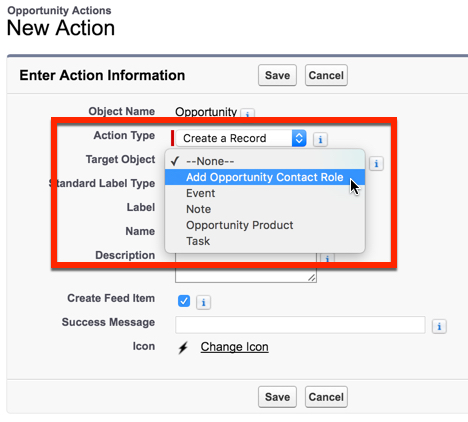
Action2

Label the Action New Contact Role and then uncheck Create Feed Item.  This stops our action from adding a Chatter Post to our Opportunity.
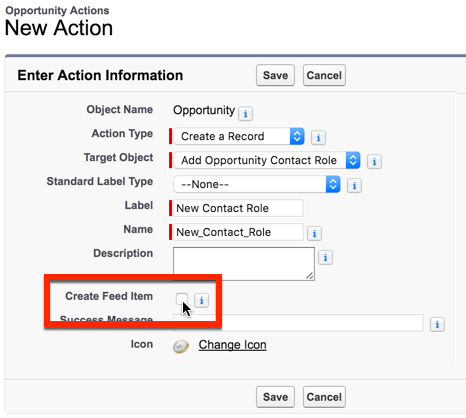
Action3

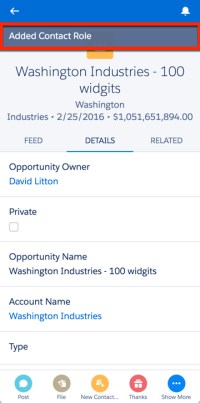
My favorite part, write your custom Success Message.
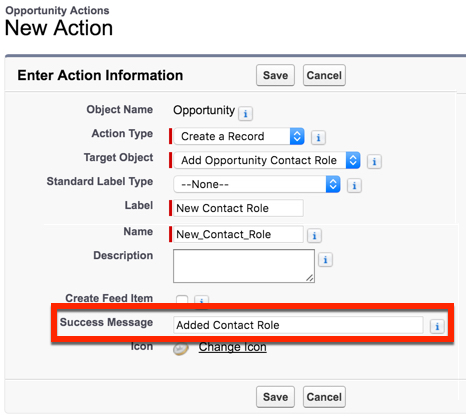
Action4

Lastly, we need to change the Icon to our Custom one.  If you haven’t read my post on the Lightning Design System, now would be the time to do so!  Don’t use the boring default icon, make this your own creation!!
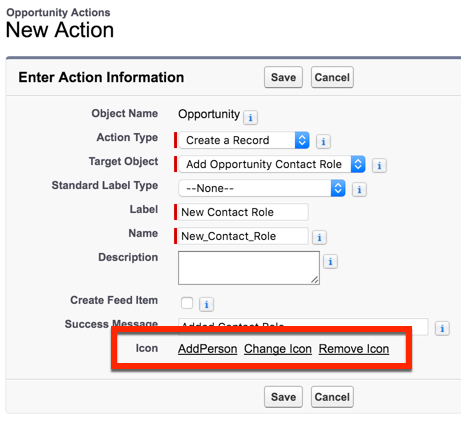
Action5

Now to edit our Layout…  Lets remove Opportunity, because that is implied.
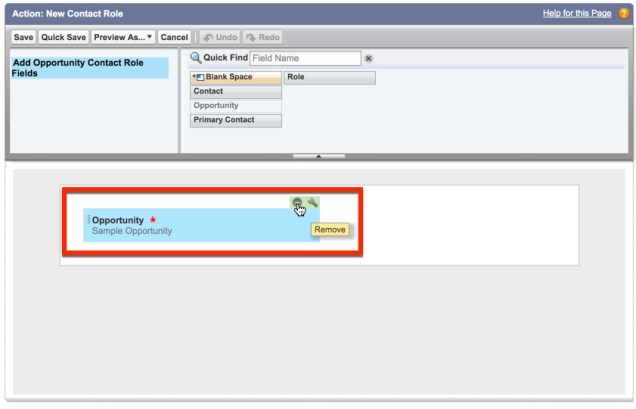
Action6

Lets add in our other fields, and make the Contact and Role required.
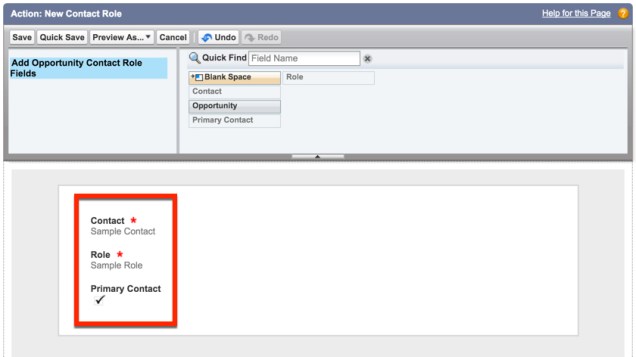
Action7

Hit Save, and ignore the Alert message from Salesforce.
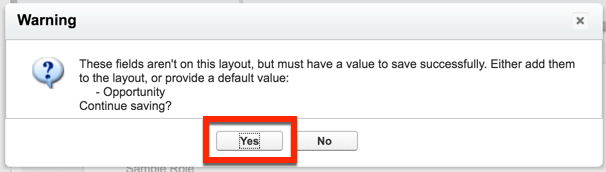
Action8

Now, lets create a new Predefined Field Value.
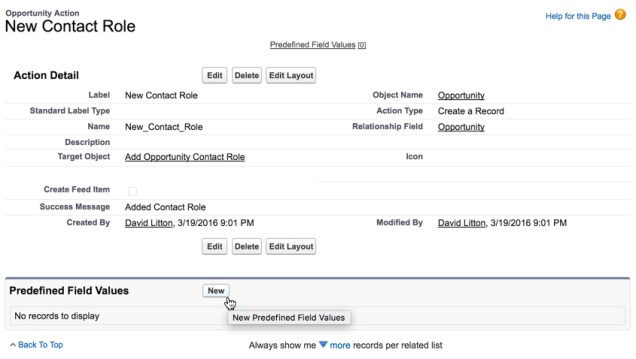
Action9

We want to select our Opportunity field and put in the related .
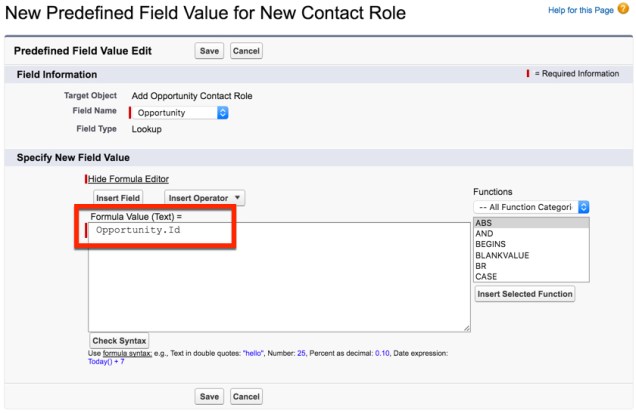
Action10

Great, we are done with the Action!

We now have to create the Process Builder and Visual Flow.  Let’s get our Flow created first since we can’t Activate the Process Builder without it  (Setup | Create | Workflows & Approvals | Flows).
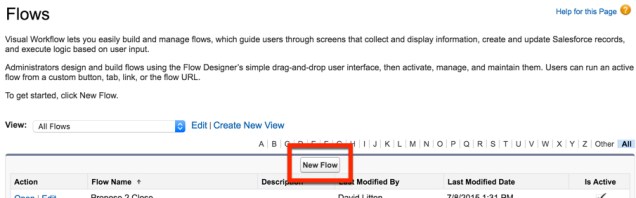
 

NewFlow.jpg

The first step is going to be grabbing our Record Create.
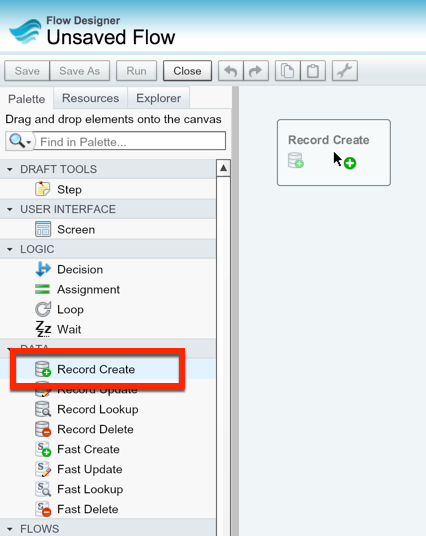
RecordCreate1.jpg

We now need to create the variables we will use to create the Opportunity Contact Role.

Contact Id
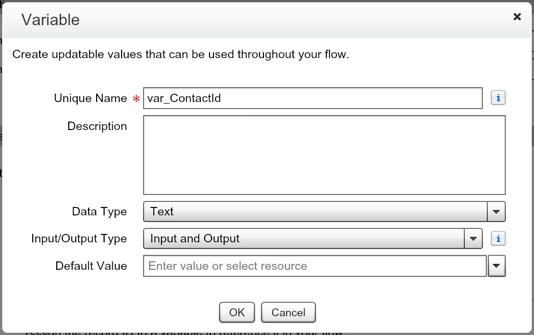
var_ContactId.jpg

IsPrimary (This is a BOOLEAN, not Text)
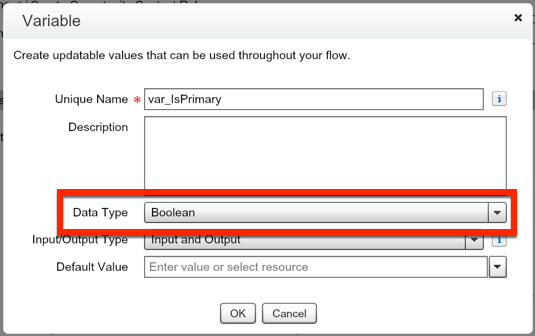
var_IsPrimary

Opportunity Id

var_OpportunityId

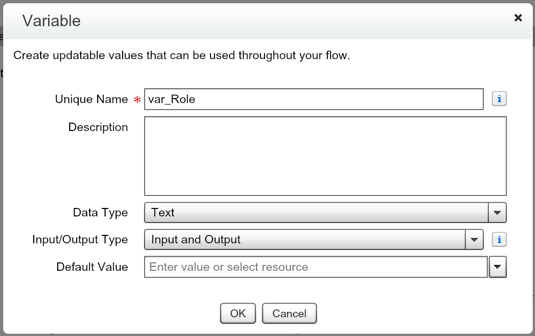
Role

var_Role

Lets make sure everything is correctly mapped inside our Record Create.
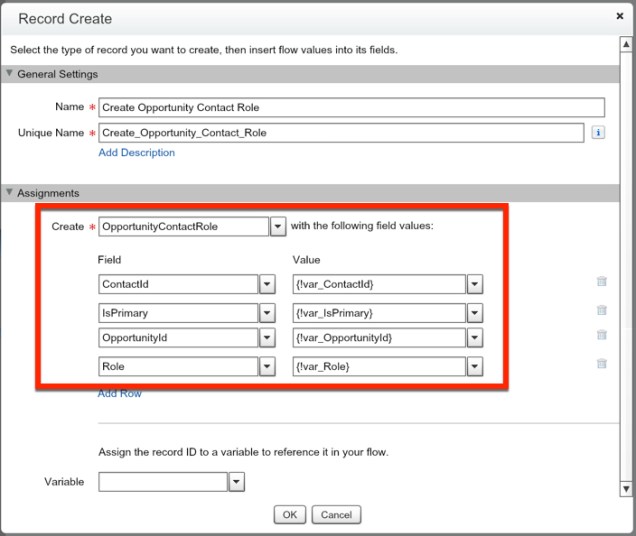
RecordCreateFinished

Great!  So lets hit OK and set this as our Starting Element.
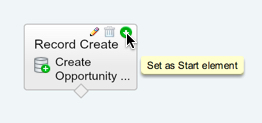
startelementset.jpg


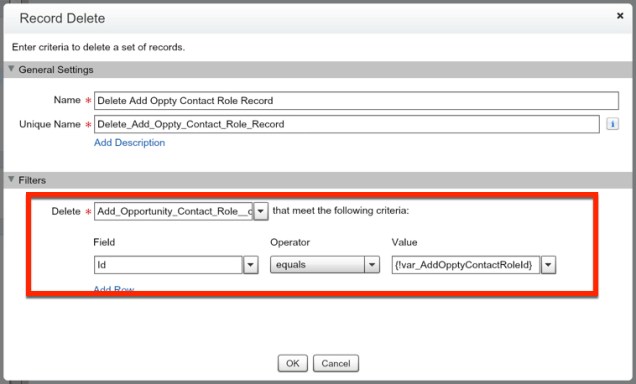
Now lets drag in our Record Delete.  This is so that we don’t add in extra data to our system.  However, if you want to track the usage of this Action by running reports on this Object, then you can skip ahead to saving the Flow.  Also, if you went with the option to go with using Custom Fields on the Opportunity instead of a Custom Object, you’d want to use a Record Update to reset the values to an empty string.
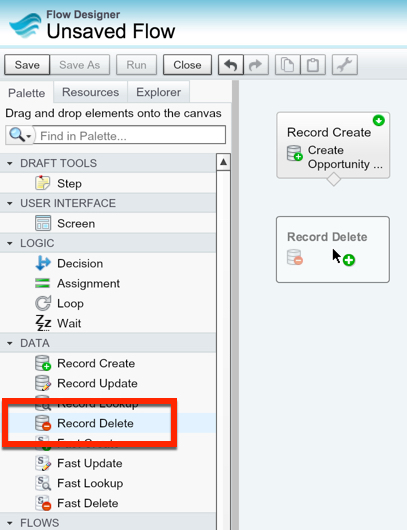
RecordDelete

Create a variable for the Record Id of the Custom Object record we just created, when our Action is used.
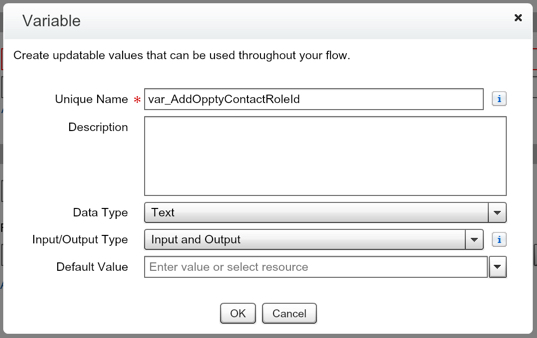
AddContactRoleId

Map it in our Record Delete.

DeleteOpptyContactRole

Connect the elements together to finish our Flow.
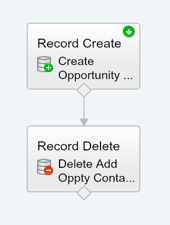
FinishedFlow

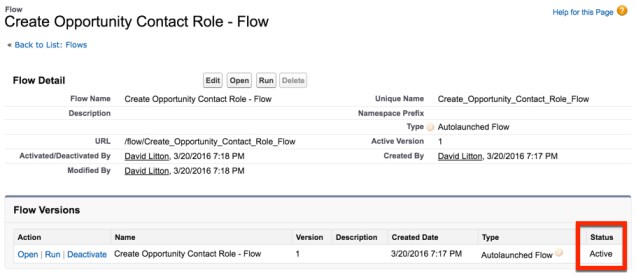
And lastly we want to Save and then Activate our Flow!
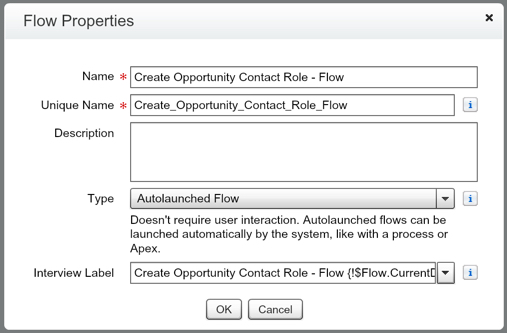
Save OCR Flow

ActivateFlow

Fantastic!  Now we need to setup our Process Builder that fires this Flow.  So lets go create a new Process Builder for this.  (Setup | Create | Workflows & Approvals | Process Builder)
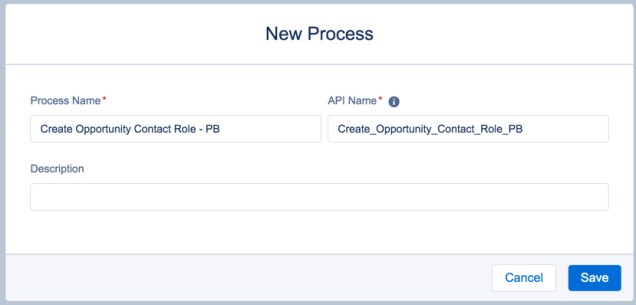
NewPb1.jpg

We want the Process Builder to fire on our Custom Object that we created, Add Opportunity Contact Role, and we want it to fire only when a record is created.
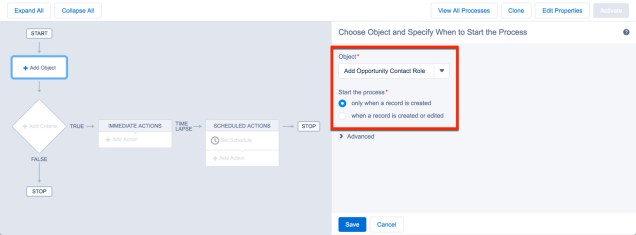
NewPb2

We don’t need to set any criteria here, as we want it to run every time a record is created.
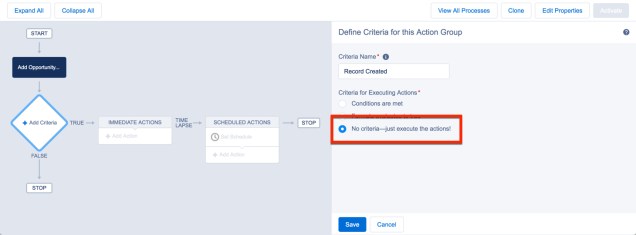
NewPb3

Now we need to map the variables in our Flow to the Values in the Custom Object, using the Type Reference.
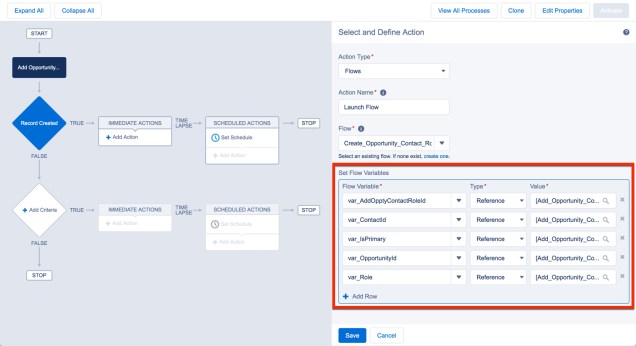
NewPb4

Hit Save, then Activate your Process Builder.  You’re done!  Now all that is left is for us to update our Salesforce1 Actions layout!
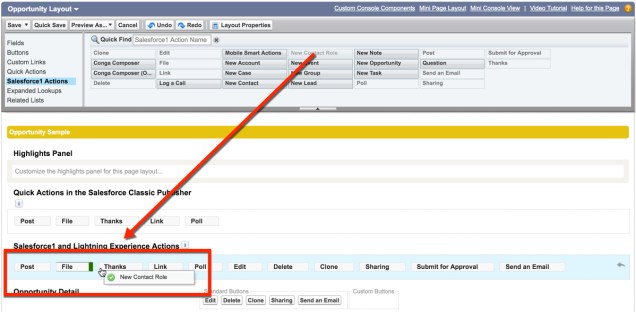
AddToLayout.jpg

Now open up Salesforce1 and look at your finished product!
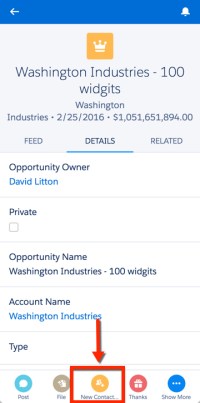
SF1 view 1           SF1 view 2         SF1 view 3.jpg

With a simple Flow and Process Builder we are now able to bypass a silly limitation that Salesforce1 currently has.  But, hopefully this won’t be necessary much longer if you vote for this idea: https://success.salesforce.com/ideaView?id=08730000000DpbEAAS
 

How to Submit for Approval in Visual Flow

You have the ability now to submit records for approval in Process Builder.  This is one of those cases where we pretty much have the same functionality in Process Builder as we do in Visual Flow.  So that means, if its a simple submit for approval scenario, Process Builder will be the right tool for you!  However, if you need to try and make it more dynamic or simply fit it into an existing Visual Flow that you are using, then this Static Action will be your new best friend!
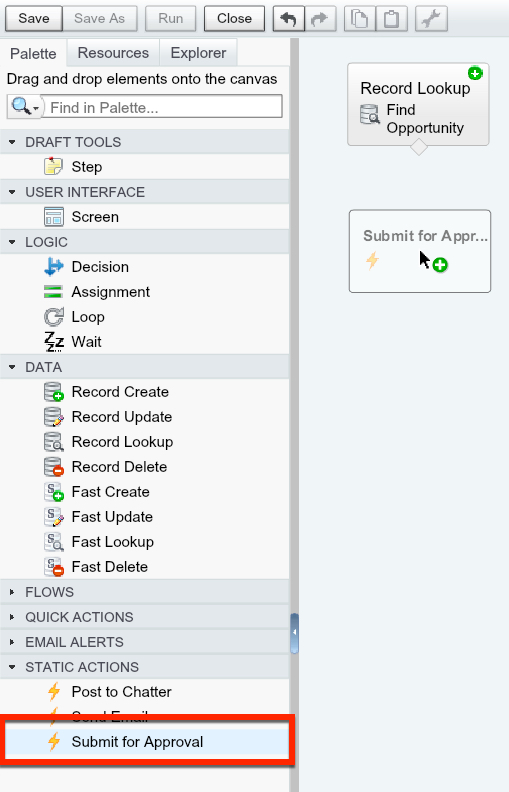
Depending on how many Flows, Quick Actions, and Email Alerts you have in your Salesforce, you might not notice the Static Actions section at the bottom of your Palette.  In here you’ll find a list of all three Static Actions.  We are going to be using Submit for Approval.

Great, we found our Submit for Approval., so lets drag it onto our Flow’s Canvas.

DragtoCanvasSubmitForApproval.jpg

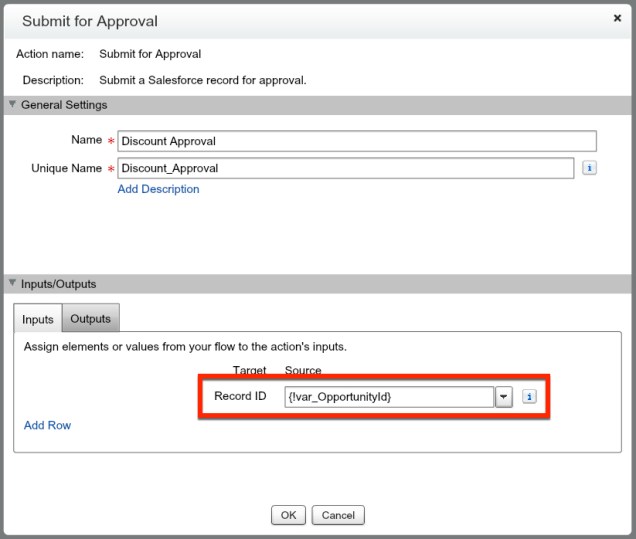
If you notice, the only thing that is required for us to submit this for approval is the Record ID we want this to be triggered on.

RecordIdApproval.jpg

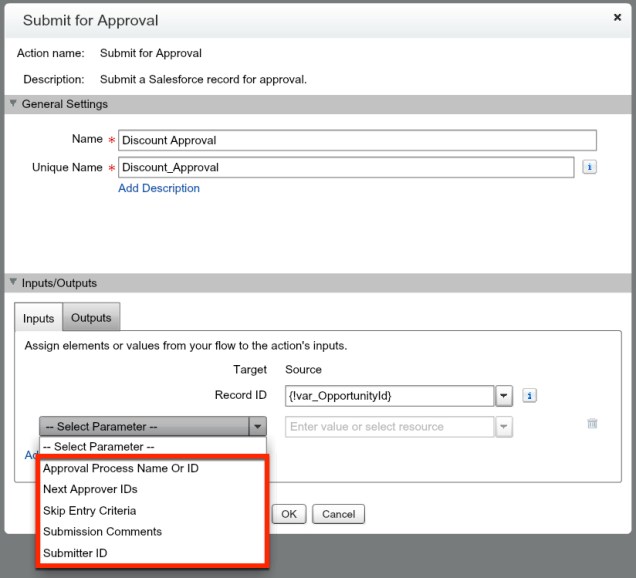
More often than not you’ll want to use some of the additional options with this element.

Submit for Approval Parameters.jpg

So, lets take a look at what those other parameters are:

  • Approval Process Name or ID
    • This allows you to enter the approval process Name or ID that you want to start
    • Leaving this parameter blank will cause the first Approval Process where the Entry Criteria is met to be selected
  • Next Approver IDs
    • Can either be a User ID or a Public Group ID
  • Skip Entry Criteria
    • Allows you to skip the Entry Criteria of your Approval Process
    • If you mark this as TRUE, make sure you specify the Approval Process if there is more than one.
  • Submission Comments
    • If you want to add comments that accompany the submission
  • Submitter ID
    • The User who is ‘submitting’ the record for Approval
    • Default is the Running User

Now we are able to set those parameters and when we hit this element the record will be submitted.  The cool part of this is we can also get pretty creative with what happens AFTER it is submitted for approval by using the Outputs tab, and assigning a parameter to a variable to be referenced after the record is submitted.

SubmitForApprovalOutputs.jpg

So, lets take a look at what our Output parameters are:

  • Instance ID
    • ID of the Approval Process Instance.  You can find this Object labeled ProcessInstance.
  • Instance Status
    • The Status of the Approval.  The four values are: Approved, Rejected, Removed, and Pending.
  • New Work Item IDs
    • A record(s) of work item(s) related to the next step.  Note, you can find this Object
  • Next Approver IDs
    • The next User(s) listed as an approver.  Just like the Work Items, this is potentially a collection of Users, so keep that in mind if you’re planning on working with it!
  • Record ID
    • This is the ID of the record that has been submitted for Approval.  Not of much value, which is why you see it listed last 🙂


For a quick summary, if you’re doing something basic with submitting for approval, go with Process Builder!  If you’ve got an existing Flow that you want to incorporate Submitting for Approval in, say you’re using a Visual Flow, then this is a great solution for you!


Close Cases with a Quick Action

If you have used Cases in Salesforce, I am sure you’re aware of the Closed Case layout.  This is great, it lets you require the fields that must be filled out before a User can close a Case.  Now, the issue comes when Salesforce rolled out the Feed View in the Console.  Our Users are supposed to live in the Feed, and it would be great if we could have a Quick Action for closing the Case so it is easy to use on the Desktop and Phone!  However, if you’re limiting Close Statuses to the Close Case Layout, you can’t simply drag in your Status field!  You’ve got to get creative!  So we’ll show you how with a Quick Action and a Process Builder we can make our own customized Close Case Quick Action!

How do we do this?

  1. Create our new Fields
  2. Create the Quick Action
  3. Create the Process Builder
  4. Add the Quick Action to the Page Layout

Lets get started!  First, lets create Close Status, which will mirror what your existing closed Status values are.  Remember, if you add a new closed Status value, you’ll need to update it here too.  Not ideal, but it is all we can do right now.

Close Status.jpg

Next, we want to add in a field that will let us know our Quick Action has been fired.  This will be a Checkbox field.

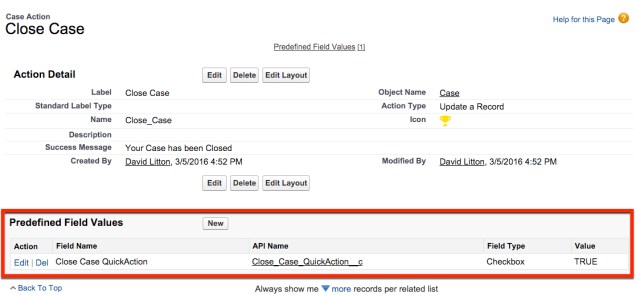
CloseCaseQuickAction.jpg

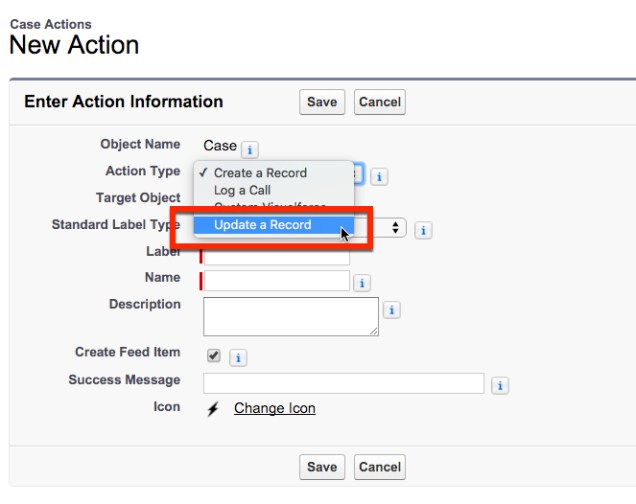
Now that we have all of our new fields, lets go and create a Quick Action.  To do this, we want to navigate to the Buttons, Links, and Actions section under Cases.  From there, we will hit New Action.

New Action.jpg

We want to now select our Action Type to be Update a Record, which means we are updating the record the action is executed on.

UpdateRecord

Now lets name our Action Close Case and then we get to do my favorite two parts of an Action!  We get to create our Success Message and add our custom Icon.  For those of you new to seeing the Success Message, this will be displayed after someones hits Update on our Action and close the Case.  Previously we weren’t able to modify that message, but now Salesforce gave us that power!  So lets use it!

Success Message

For this Action I’ve got a trophy from the Lightning Design System I want to use.  If you’re unfamiliar with the Lightning Design System and how you can use it to make your Actions and anything Lightning look awesome, check out my post on it!

First, lets get rid of all the fields on the default Layout.

ActionLayout1

Now, lets add in the fields that we want for our Closed Case Layout, and lets set the fields required that we want to require them to use.

ActionLayout2

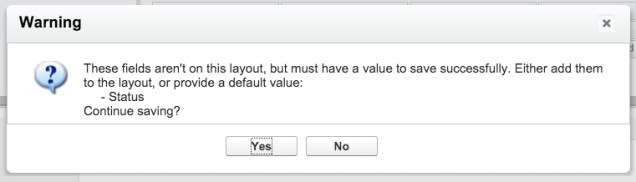
As you go to save the Action you’ll see a warning message from Salesforce letting you know a required field (Status) is not on your layout.  You can ignore it 🙂

ActionLayout3

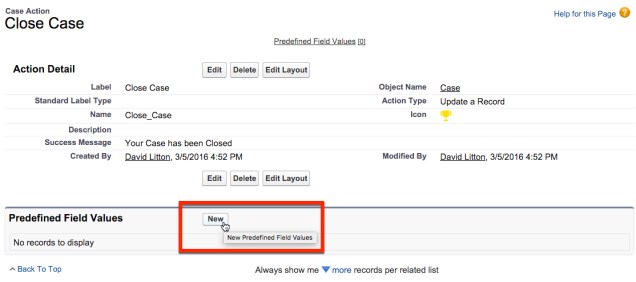
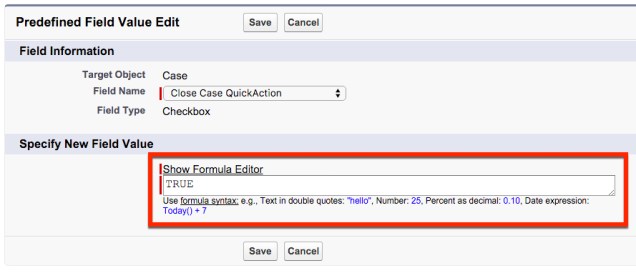
Before we move on, we need to use the Predefined Field Values to our advantage, and have Close Case QuickAction set to TRUE.  This will allow us to know every time the Action is pressed, and when we want to trigger our Process Builder.

Predefined FieldsPredefined TRUEPredefined DoNE.jpg

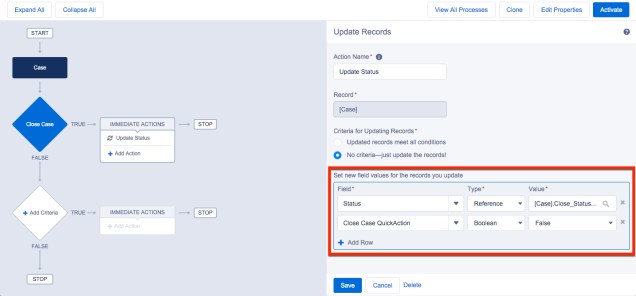
Now on to creating our Process Builder!  This is where the magic comes in.  If you noticed, our field Close Status is not magically linked to the Status field.  But, we need it to be.  The reason we are using Process Builder and not a Workflow Rule is Workflow Rules are not able to pass in a dynamic value of a field, but Process Builder can!  With Process Builder we will be able to make any update to the Close Status field pass into our Status Field.

Lets go create a new Process Builder for this.  (Setup | Create | Workflows & Approvals | Process Builder)

New PB 1.jpg

Set this to have the ability to fire from the Case Object on when a record is created or edited.

PB2.jpg

For our Criteria we need it to be whenever our Close Case QuickAction boolean is TRUE.  We also want to check in our Advanced section the box to make sure we don’t keep firing this Process Builder with every edit (though, our Record Update technically would stop that).

PB 2.jpg

When this happens, we want to do a Record Update to change the Status to the Close Status value, and we want to reset the Close Status QuickAction field to FALSE.

PB 3

Now Save & Activate the Process Builder.

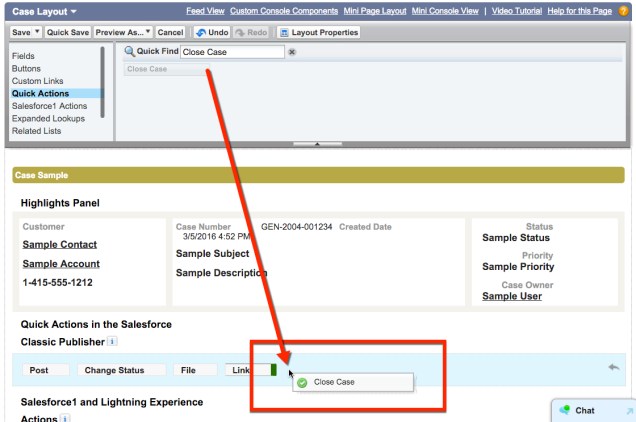
To finish up, lets navigate over to the Page Layout editor and drop in our new Quick Action!

Page Layout 1.jpg

Hit Save.  Now lets navigate to a Case and check out our hard work in action!

Page Layout 2.jpg

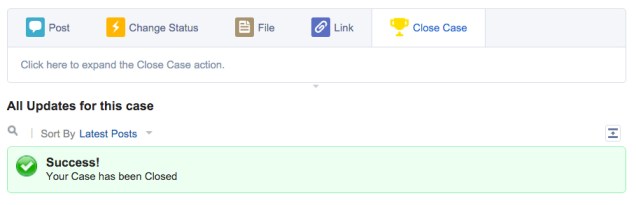
Fill out the required fields, hit Update, and watch the Case get closed!

Page Layout 3

Hopefully the simple combination of  an Action and Process Builder shows you how easy it is to take your Actions to the next level!

Salesforce.com Chrome Extension Master List

googlechrome

A friend recently asked me what Chrome Extensions I would recommend to a new Salesforce Admin.  So, that led me to create this Master List of extensions.  I do not plan on having every extension listed here, but I do plan on adding the ones that I think provide value for a Salesforce professional.  I will update this post as I continue to find and use new extensions.  If you have any that you think are important that I have left off, please send me a message or leave a comment!

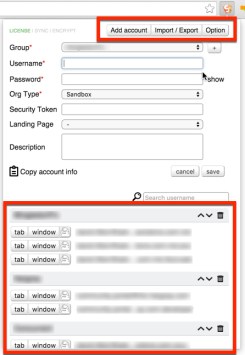
Force.com LOGINS [Paid]
I know there was some uproar about this turning to a paid extension in 2016, but it is a small cost for the value it provides!  This has to be the #1 Google Chrome Extension among Consultants, and it is also great for an Admin to keep track of all of your Developer Accounts and Sandboxes.  You can get organize your Logins into Groups too!  I like to keep each client in their own group to keep all of their environments together.

Force.com Logins.jpg

Salesforce.com Sandbox Favicon & Salesforce Colored Favicons

These two extensions are the ones I really can’t live without.  The Sandbox Favicon extension adds an into the middle of all of your Sandbox.  This has saved me many headaches, as when I was a new Admin I accidentally made some changes in the wrong environment more than once!  Luckily nobody noticed…

S favi.jpg

The Salesforce Colored Favicons are great for those of you with many Orgs that you support.  If your company or clients use a MyDomain, then you can have a specific color setup for them.  Otherwise, this is based on the instance.  Note, If you’re using this one you will probably want to turn off the Sandbox Favicon as it will overwrite this extension.

favi.jpg

Salesforce1 Simulator

This extension is great for showing a Salesforce1 demo on your Desktop.  It even lets you choose the device size so you can demonstrate both a phone and a tablet’s view.

S1 Demo

This is another fantastic SF1 simulator.  This only displays in one size, similar to an iPhone 6.  The really cool part of this simulator is that when you’re already logged into an Org and you launch it, it will automatically log you into that Org.

Salesforce API Fieldnames

This is a fantastic extension that I wish I had found sooner.  This makes it really easy for you to check the API name of the fields on a page layout.  The best part is that you can toggle this on and off by clicking on the icon in your browser!  So easy!  As a Consultant living in many orgs, this really helps since I’ve not got every field memorized anymore.

ExtensionSalesforce.com Enhanced Formula Editor

Anyone whose tried to make a formula in Salesforce has been craving for something like this to be delivered by Salesforce.  It will help you stay organized as you write that perfect formula!

Boostr for Salesforce

This awesome extension has FOUR parts:

  1. Change Set Assistant
    • Have you tried to find that new Custom Field that you just added but there are just too many fields to filter through?  This will save you a headache!
  2. Field Set API Names
    • This is a pretty cool trick for anyone that is using Field Sets.  It allows you to see the API Name so that you are sure what field you’re using!
  3. Setup Search
    • THIS.  THIS.  This is why you should get this extension.  Have you tried to use the Setup Search but the pesky pre-populated text is in your way?  With this enabled you’ll
  4. Object/Field API Name
    • If you are against having _ in your API Names for both Custom Fields and Objects, this will save you the trouble of deleting it every time!  I will admit I have this one disabled right now.

In the settings 1, 2, and 3 all are turned on automatically.  4 must be turned on manually.

SalesforceIQ Inbox

The two reasons I use this are so I can schedule my emails and see whose opened the email.  The reason I like to schedule my emails is to let my clients think they are the first thing on my mind at 6:30am the next day (when I am probably still snoozing).  Or maybe you are somebody who is trying to not let your clients or coworkers get into a habit of expecting an instant response from you, you can even schedule them to be sent out an hour later!

ColumnCopy [Credit to Brent Downey]

If you’ve ever tried to copy and paste values from a picklist or object inside Salesforce, you’ve probably found it is a nightmare.  This fixes that problem for you.  If you need anymore of an explanation check out Brent’s post, as he goes into extreme detail on it!

Salesforce.com Quick Login As [Credit to Eric]

Thanks to Eric for letting me know about this extension.  This extension saves you the trouble of going to Setup –> Manage Users and simply adds it next to your Favoriting Star in the browser.  From there, you can click and see your list view of Users to Login As one.  Pretty handy if you find yourself logging in as Users often!  The best part of this it takes you to the same record/page you were on.

Salesforce Admin Check All

The name says it all!  Save yourself some clicking!  My only gripe with this app is that it only works in certain areas of Salesforce.  If this worked throughout all of Salesforce, it would be in the running for my #1 extension.

Go Directly To User Detail on SFDC

Have you ever been annoyed by clicking on a User and it takes you to their Chatter Profile when you really just wanted to add a Permission Set, Public Group, or deactivate them?!  Well, now with this you can avoid that pesky second click and get straight to the User Detail page.


Don’t Hardcode IDs, Query for them!

We all know this, but we don’t all do this.  Please, don’t hardcode IDs!  I will start this off by admitting I have done this many times, and still do it occasionally.  However, whenever I do it now – I have to be able to justify it.  If you can avoid hardcoding an ID – do it!
What are the disadvantages for hardcoding an ID?

  1. If you are developing in the Sandbox, the IDs of newly created Record Types, Permission Sets, Public Groups, Accounts, Contacts, or anything else will change when you get to Production!
  2. You might miss something when you change the IDs from Sandbox to Production and your Flow won’t be fully functional.  Your testing has to be done all over again!
  3. It is easy to lose context for what that hardcoded ID.
  4. The System uses 18 Digit IDs when you assign an ID to a variable (referring to Flow).  If you paste in the 15 Digit ID you run the possibility of issues with EQUALS operators… beware!
  5. Did I mention IDs can change?!  Don’t do it!

When you think about if you could just hardcode an ID rather than doing that extra query, just remember this:

hardcoded id meme.jpg

Top Objects to Query:

  1. Group (Filter by Type)
    • Public Groups
    • Queues
    • Chatter Groups
  2. PermissionSet
  3. RecordType (Filter by Object)

Tricks of the trade:

  1. Query using the DeveloperName when possible.  This allows you to change the Label without breaking anything.
  2. Use Custom Settings or Custom Metadata Types!  Fun fact, Custom Settings don’t count against your SOQL Limits.  I will admit, I was a late adopter but love them now!

How to Post to Chatter in Visual Flow

Some people might think, “Why would I want to Post to Chatter in Visual Flow when I can do that in Process Builder’s nice Chatter Post UI?”.  Well, the answer is pretty simple.  You’re only able to post to records related to the one that triggered your Process Builder to fire.  By doing our Chatter Post in Visual Flow, we are now able to @mention any User and any Record in Salesforce (that we have chatter enabled on).

Disclaimer: You are able to use a Record Create on the FeedItem Object to create a Chatter Post.  This is often times the route you’ll want to go, as there are more features that you can take advantage of that this Post to Chatter Static Action doesn’t have.  However, this Post to Chatter does not count against any of your Flow Limits (besides the 2,000 used element limit).  So, if you’re in a situation where your close to your limits, try using this action!

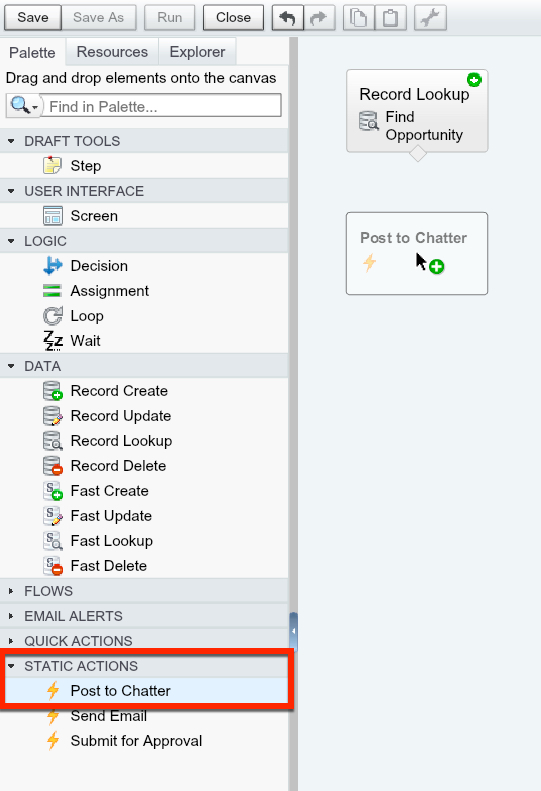
Depending on how many Flows, Quick Actions, and Email Alerts you have in your Salesforce, you might not notice the Static Actions section at the bottom of your Palette.  In here you’ll find a list of all three Static Actions.  We are going to be using Post to Chatter.

Great, we found our Post to Chatter, so lets drag it onto our Flow’s Canvas.

Drag Post to Chatter.jpg

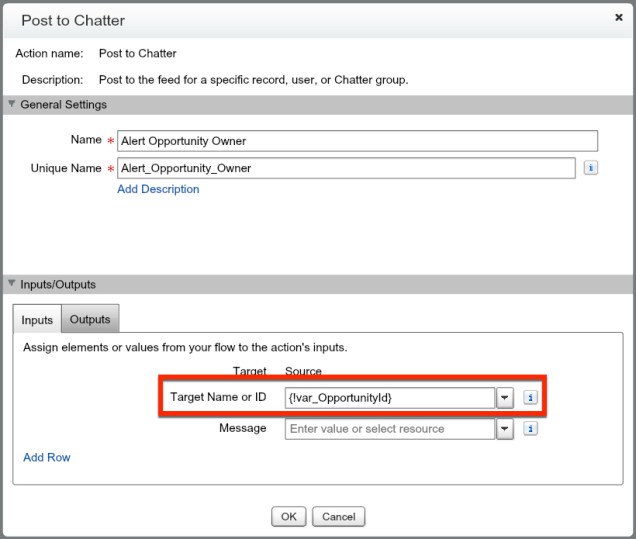
Now, this is the cool part of a Static Action Post to Chatter is the same as an Email Alert.  I only need the Record ID for me to make the post, it doesn’t matter where or how I triggered this Flow!  It is important to note that this isn’t the only use for our Post to Chatter‘s Target Name or ID.  We have the option to post to a specific User or Group (just like we can in Process Builder).

TargetNameOrID

Note: If you insert the Username or Chatter Group’s Name into the Target Name or ID reference, you will need to include the Target Type to let Salesforce know whether they need to match that to a User or Group.  This could potentially save you a query if you’re close to your limits and you don’t already have that ID in your Flow.

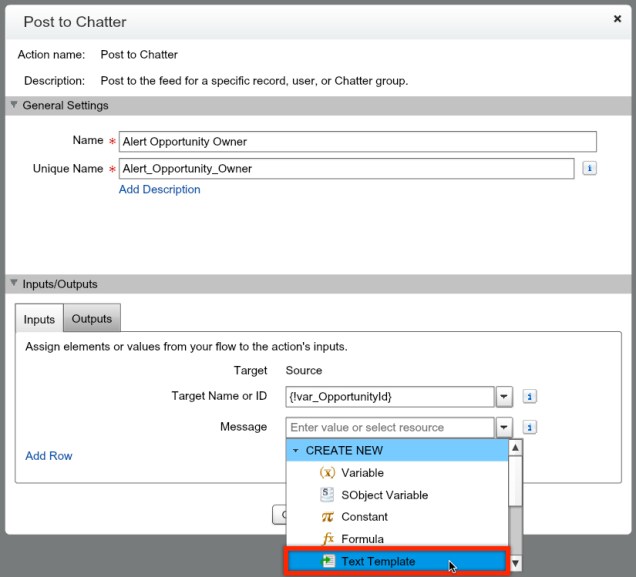
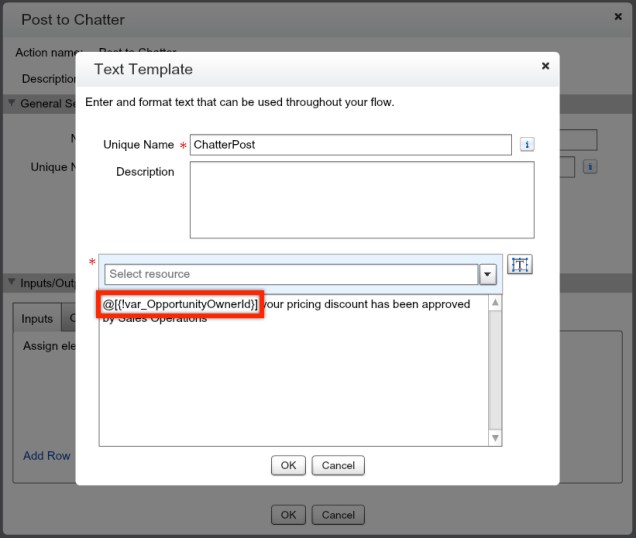
Now, the next piece we get to is the Message.  This is the body or description of our Chatter Post.  I am going to strongly suggest that you always use a Text Template when doing anything with words in Flow.  So, that is exactly what we are going to do here to build out our Chatter Post!

Post to Chatter Text Template

If you notice, we have a different way of @mentioning Users or Groups inside of a Flow’s Chatter Message.  We must stick to the format of @ [ {User/Group ID} ] for our @mention to work properly.  DO NOT use the formatted text option, as you’ll see the actual HTML code show up in your Message.  The formatted text should only be used with Screens (places the User interacts with in your Flow).

Post to Chatter Finished Text Template

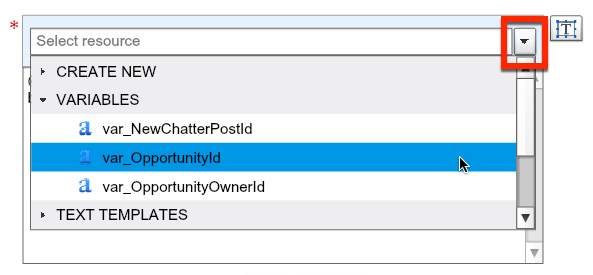
The great thing about using the Text Templates is that we can easily reference our Variables using the section that says Select resource.  This can come in handy when you want to bring in other related fields like the Opportunity Amount or Close Date into your Message.  You can either type the variable or other resource into the search box, or click on the dropdown arrow to have every listed by resource.

Selecting Resource.jpg


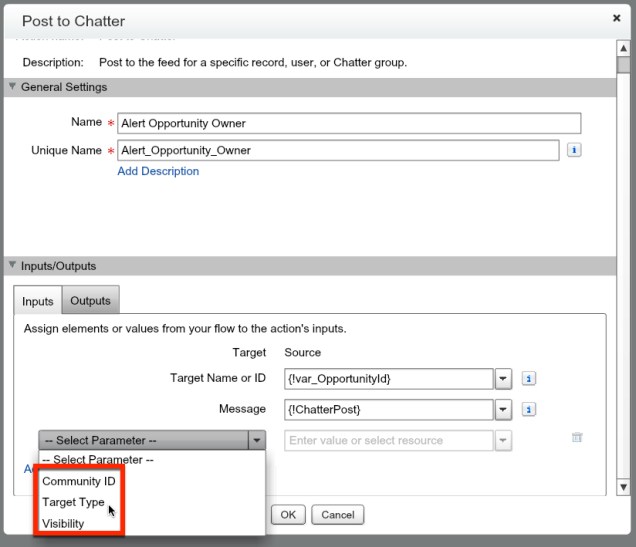
You also have the ability to add in additional parameters to your Post to Chatter.

  • Community ID
    • Only valid if you are posting to a User or Chatter Group that belongs to a Salesforce Community
    • ID of the Community you are referencing
  • Target Type
    • Required only if you are using the Username or Chatter Group Name in the Target Name or ID parameter
    • Valid Values
      • User
      • Group
  • Visibility
    • Only matter if you have a Salesforce Community enabled
    • Valid Values
      • allUsers
      • internalUsers

Notice what is not there – the ability to do it as a specific User.  This will always be written from the User who triggered the Flow.

Additional Chatter Options

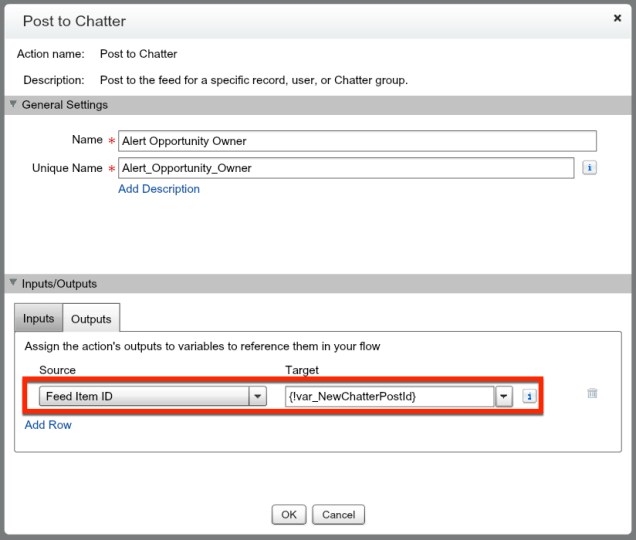
On the Outputs side of our Post to Chatter we can see that we have the option to grab our Feed Item ID (the ID of the Chatter Post we create with this element).  Now, this can be great if you want to add comments or reference it elsewhere.  95% of the time, you’ll probably be ignoring this feature.

Setting FeedItem Id

Now all that is left is to press OK and map this Post to Chatter to the part of your Flow you need it to send from.  Pretty simple and easy to use!


The 6 Most Common Visual Flow Errors to Avoid

Visual Flow and Process Builder have gained adoption around the Salesforce Community.   We are even allowed to Activate a Flow or Process Builder in Production without ever testing it is actually working as we intended.  This means that when we develop a Process Builder or Flow we are quite likely to run into errors.  These errors are the main mistakes that you should look out for when you are building a Flow.  I’ve hit all of these errors, and I still continue run up against some of them.  However, knowing what to lookout for will save you a headache when you do run into one!

No Access to Running Flows

This is an easy fix and you’ll only run into once (per Org that you work in).  Make sure any users that need to access a Visual Flow have the System Permission Run Flows.  If the End User lacks this permission and they attempt to access the Visual Flow they’ll receive an error.

Object & Field Level Security for running user

If you are using Visual Flow (not launched by Process Builder), this is an error you can run into.  This can cause all kinds of issues when your Lookups, Creates, and Updates all break.  This is something that you can’t really fix within your Flow, and this is strictly user permissions.  This comes down to you as the Administrator knowing the level of security your users that will be using your Flow.  So, make sure your End Users have the ability to do everything you want them to or they’ll get an error!

Too many SOQL queries

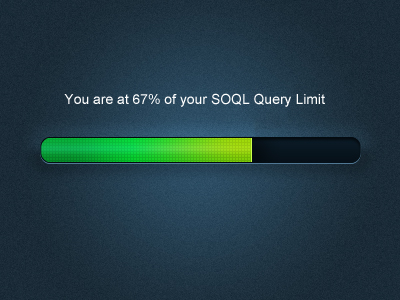
Fortunately this is a limit that usually only Admins run into.  It is rare our End Users actually preform data loads, or use an Autolaunched Flow hits this limit.  Unfortunately we don’t actually have a limit status bar as an option, and it doesn’t seem like this is coming anytime soon.

Now, when you’re building a complex Flow, you need to consider how it is going to be used.  Are you likely to hit limits on?  Are there other Workflow Rules, Process Builders, Auto-launched Flows, or Apex Triggers that will be touched by your automation and might cause a ‘loop’ of your automation?

The best advice I can offer for you with this error is to assume you will always hit it with data loads.  But, in the case when you don’t… TEST, TEST, and TEST again.  There is no magic status bar to alert you how you are tracking.

Flow SOQL.jpg

Using the wrong Field or Variable

This one is really just a User error issue.  This typically happens to me when I am working late at night.  Sometimes I might confuse the variable that I am looking for.  Often times I find this might happen when I see people creating or doing lookups to Junction Objects.  This is because we often do not use the name of the Object as our field name.  For instance, if we are tracking Job postings in Salesforce and on our Application we have the Contact lookup labeled as Applicant.  If I wasn’t paying attention, I could easily grab the wrong field to reference as my Contact Id… this plays into our next common error.

PittyFoolAwkwardLookup

Creates with no variable as your criteria, or Updates with No Records Found

So we are excited to throw our Flow out into Production, however we didn’t realize that there might be a scenario that our Flow might get activated and one of our variables isn’t populated.  This could be for a number of reasons, but it will cause you a big problem.  This will get you one of our favorite FlowApplication error emails.

Now, the way we can attempt to solve this error is to use Decisions to validate that we actually found the variables that we expected to find.  Take a moment and read my Decisions – Your Flow’s Test Coverage.  By using this method you can hopefully avoid running into these two errors altogether!

Duplicate Value – Membership/Assignment already exists

If you are using Process Builder or Visual Flow to add a User or Contact to a membership of some sort.  The main areas you’ll run into this are:

  • Campaign Members
  • Public Group Membership
  • Permission Set Assignment
  • Queue Membership

This can be avoided by doing Lookups of the existing memberships/assignments before doing the Record Create.  This can get difficult when you are dealing with multiple records, as there is a limit to how many Lookups you can do (and the ‘speed’ of doing this).

How to use a Fast Delete

Have you ever had the need to delete a group of records all at once?  If you’re dealing with a sizable amount of records, you can’t get by using multiple Record Updates.  The easiest and most efficient way to do this is to use a Fast Delete.  A Fast Delete allows us to delete hundreds of records at once in one Flow!

Deleting data in Salesforce is something that we typically don’t want to do.  And, when we do, there needs to be a good reason why.  In most cases that I’ve used a Fast Delete it has been removing a relationship that was no longer desired (Assigned Permission Sets, Public Group Memberships, or Campaign Memberships).  The example we’ll go over removing Contacts from a Campaign when their Account is no longer listed as a current customer.  The reason is that our Marketing department uses this Campaign to send out alerts to all of our current customers, and we only want active customers to receive the Campaign’s emails.

The first thing we will want to do is navigate to the Campaign Member Fields (Setup | Customize | Campaigns | Campaign Members | Fields).  We will create a custom formula field that will grab the Contact’s AccountId for us so that we can reference it in our Flow when we query Campaign Members.

CampaignMemberAccountId

Now, we can get into our Flow to query all of the Campaign Members related to the Account that just got turned to be ‘former customer’.

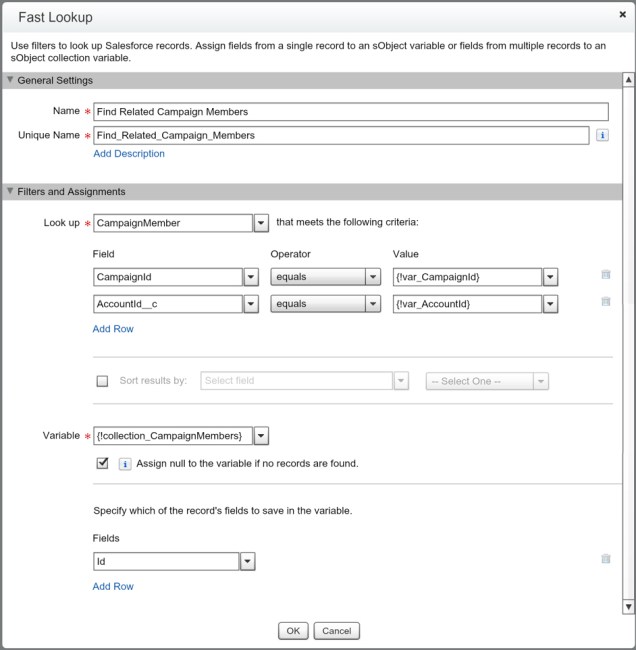
If you have not yet read Fast Lookup, you might want to take a look it.  This post is focused on how we get our Fast Delete to work, and not so much how we query to find the records to delete.  I will be showing the ‘finished’ Fast Lookup so that you have it as reference in terms of what Variables were used.

Fast Lookup for Fast Delete

So, unlike in a Fast Update or Create, we have already queried all of the records that meet our criteria in one collection.  Typically you’ll want your Fast Delete to be simply the records that meet your criteria, because that is the most scalable solution if you’re dealing with a large number of records.

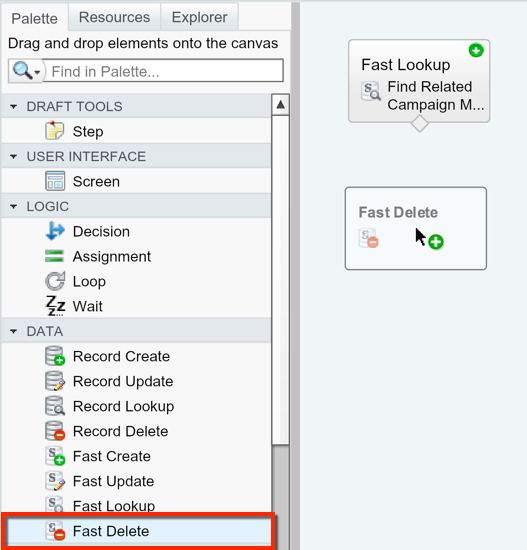
Now we need to finish this by dragging out the Fast Delete element (under the DATA section of the Palette).

Fast Delete

Set your SObject Collection Variable to be the Variable in your Fast Lookup and you’re done!

Fast Delete Element

Take a look at what the finished Flow looks like:

Completed Fast Delete Flow

To get this to run properly, we would now need to setup a Process Builder to pass in the Campaign Id and the Account Id that we reference in our Fast Lookup.  We would want our Process Builder to fire off of when the Account switches to former customer.

RECAP:  Fast Delete elements let you delete a batch of records in your Flow. While we don’t often use the delete ability in Salesforce, there are certain situations when we need to use it.  Keep in mind the Flow limits that we have when you’re figuring out how to get your collection for deletion.  So, a Fast Delete is like doing an delete of records in Workbench or Dataloader.

Email Alerts through Visual Flow

In Flow we have the ability to re-use certain pieces of functionality that we have created elsewhere.  The benefit to this is that we can consolidate the places that we have to make the updates.  With an Email Alert, we can use this in a Flow to save some of our ‘limitations’ by not having to query the recipients we want to notify.  Pretty powerful when you use it right.

Depending on how many Flows and Quick Actions you have in your Salesforce, you might not notice the Email Alerts section at the bottom of your Palette.  In here you’ll find a list of all of your system’s Email Alerts to choose from.  You can find the one that you’re looking for easily by using the Search at the top of the Palette, or by just scrolling down to it if you don’t have many alerts.

We found our Alert, so lets drag it onto our Flow’s Canvas.

FlowEmailAlert

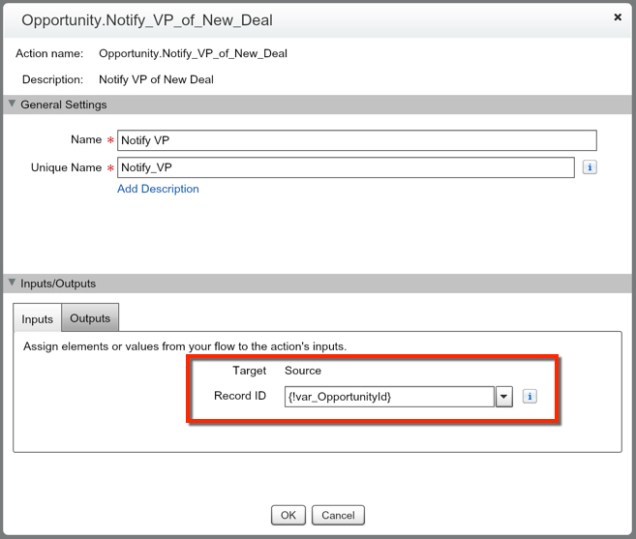
Now, this is the cool part of an Email Alert.  I could have triggered this Flow to fire from any number of Objects.  As long as I have the record’s ID that I want to fire the Email Alert from I can!  When using this element we simply place the variable of the Record we want the Email Alert sent from in the Record ID input.

EmailAlert

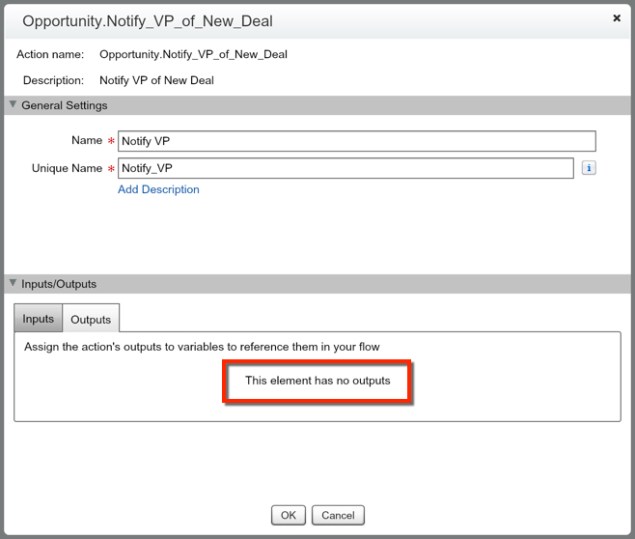
If you click over to the Outputs tab, you’ll notice that we don’t have the option to do anything… so know you’re not missing any additional functionality.

NoOutputs

Now all that is left is to press OK and map this Email Alert to the part of your Flow you need it to send from.  Pretty simple and easy to use!


How to use Quick Actions in Visual Flow

In Flow we have the ability to re-use certain pieces of functionality that we have created elsewhere.  The benefit to this is that we can consolidate the places that we have to make the updates.  With a Quick Action in a Flow, we can replicate an Action that we have in our system.

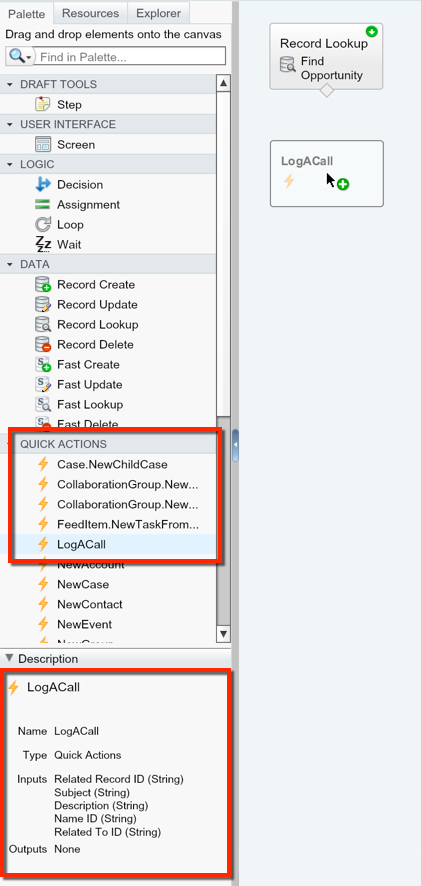
Depending on how many Flows you have in your Salesforce, you might not notice the Quick Actions section at the bottom of your Palette.  In here you’ll find a list of all of your Org’s Quick Alerts to choose from.  You can find the one that you’re looking for easily by using the Search at the top of the Palette, or by just scrolling down to it if you don’t have many Quick Actions.

We found our Quick Action, so lets drag it onto our Flow’s Canvas.

AddingQuickAction

Notice, at the bottom we have the description of our Quick Action.  This will give you a quick overview of the fields being referenced in your Quick Action, and an easy way to verify you’re using the correct Quick Action if you have some similarly named.

The thing about using a Quick Action in Flow is that I would argue it only adds more complexity to what could be done with a simple Record Update or Record Create element.  However, where this can get interesting is that using a Quick Action in your Flow DOES NOT count against your 50 DATA element limitation.  That means, if I wanted to essentially run through over 900 individual Record Creates or Updates via a Quick Action, I could!  I wouldn’t recommend doing it in a non-Developer Org, as it does take over 1 minute for the Flow to run…

With that in mind, lets take a look at what our Quick Action looks like when we drag it into our Canvas.

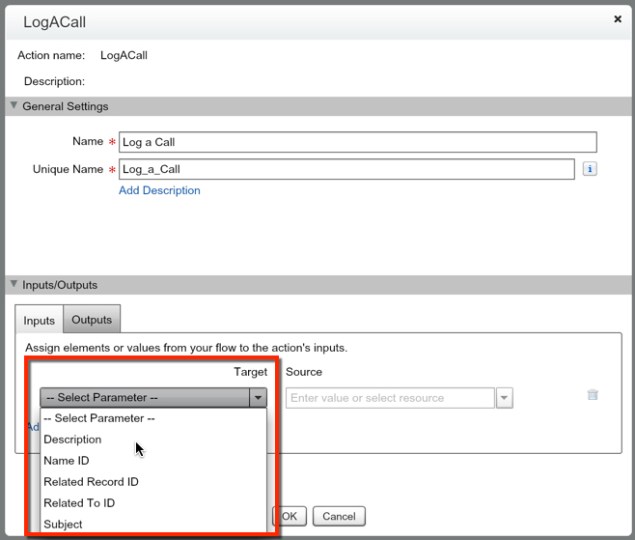
QuickActionInputs

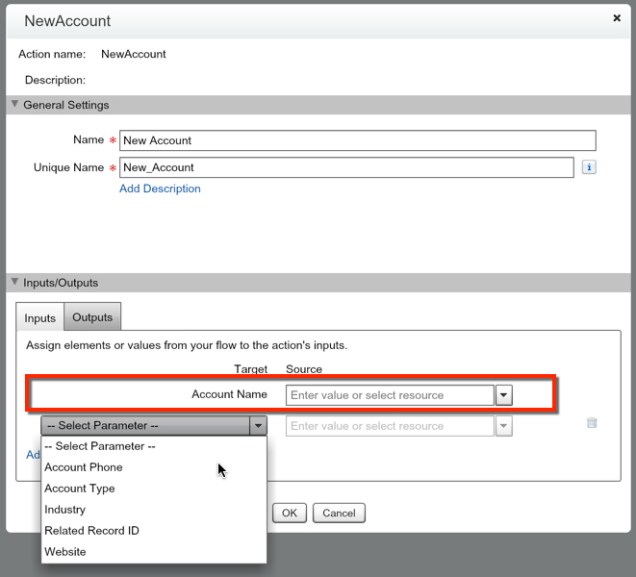
So, I am using the standard Log a Call Quick Action here.  If you notice, there are NO required fields for this action.  That means, we only have to fill out as many parameters as we want.  If I made a field required on the Page Layout, it would look like this:

Required Field.jpg


Also, another required field would be the Record ID of any record you’re doing an Update on.  This is not any different than if you were to do an update using a Record Update element, so there should be no surprise.

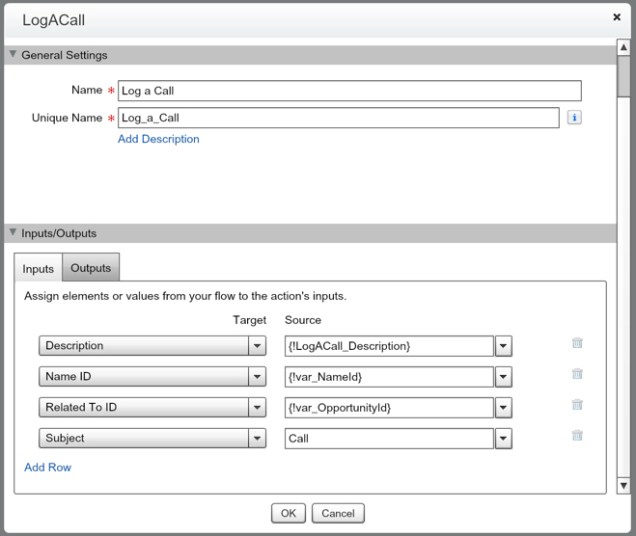
Lets now look at what our Log a Call will look like after we’ve setup the variables from our Flow to be filled out.

QuickActionFilledOut

If you notice we have an Outputs tab.  In this element there is no option for us to do anything

QuickActionOutputs

Now all that is left is to press OK and map this Email Alert to the part of your Flow you need it to send from.  Pretty simple and easy to use!